3. GPU Setup: Rent a Machine, Install the Environment, Download the Model
This is where you start spending money. Before you start the machine, make sure you have finished chapters 1–2 and prepared the upload bundle locally.
Chapter at a glance
- What this chapter does: start an RTX 4090 cloud host; learn to read
nvidia-smi; upload the project; build the Python environment for training; download the 8 GB base model from ModelScope and verify it; pick the right kernel in JupyterLab - What you need: an account and credit on a GPU platform;
llm-lora-tutorial-gpu.zip, built on your local machine withpython3 tools/build_gpu_zip.py(code, data and tokenizer only, a few MB) - What you end up with: the
.venv-trainenvironment passes its self-check;models/qwen3-4b/passes verification; the Notebook is open with the LoRA · Python 3.11 kernel - Rough time: 30–60 minutes, mostly installing dependencies and downloading weights
The five steps in this chapter and the problem each one solves:
| Step | What problem it solves | What happens if you skip it |
|---|---|---|
| 3.1 Pick a machine | VRAM must fit the 4-bit base model plus training intermediates; the disk must fit the environments, the base model and the merged model | OOM during training, or the disk fills up halfway through the merge |
3.2 Read nvidia-smi |
Confirms the GPU, driver version and free VRAM | The PyTorch you install later may be incompatible with the driver and report "CUDA not available" |
| 3.3 Upload + build the environment | Builds a project-private environment with pinned library versions and registers it as a Jupyter kernel | You end up on the image's older bundled libraries, and code behavior no longer matches the tutorial |
| 3.4 Download the base model | Gets model weights that are byte-identical to the ones this tutorial uses | A different version gives different answers and numbers; a missing shard only errors out at load time |
| 3.5 Open the Notebook | Picks the right kernel | The Notebook runs on the system Python, and imports fail or use the wrong versions |
3.1 GPU Host and Files
Where to rent: Zhichuan Cloud
All GPU work in this book was done on Zhichuan Cloud (gpuhome.cc). We recommend beginners simply use it, mainly because it is cheap and quick to get started with:
| Item | On Zhichuan Cloud |
|---|---|
| Price | RTX 4090D (24 GB) pay-as-you-go ¥1.25/hour; ¥29 per day, ¥200 per week, ¥800 per month (prices on the page as of 2026-10-11; the price at order time is what counts). The main path of this book takes about 2–3 hours, only three or four yuan |
| New-user offer | Your first top-up of ¥1 or more gets a ¥5 voucher, which is roughly enough for one run through the main path |
| GPU models | RTX 3090 / 4090 / 4090D / 4090 Lite / 5090, A100, L40S and more, 1–8 GPUs, multiple regions |
| Images | Has the PyTorch base image used in this book, 2.7.1-CUDA12.6-Py3.11-Ubuntu22 |
| Usage | One-click JupyterLab, SSH and VSCode from the instance page; comes with a 50 GB data disk |
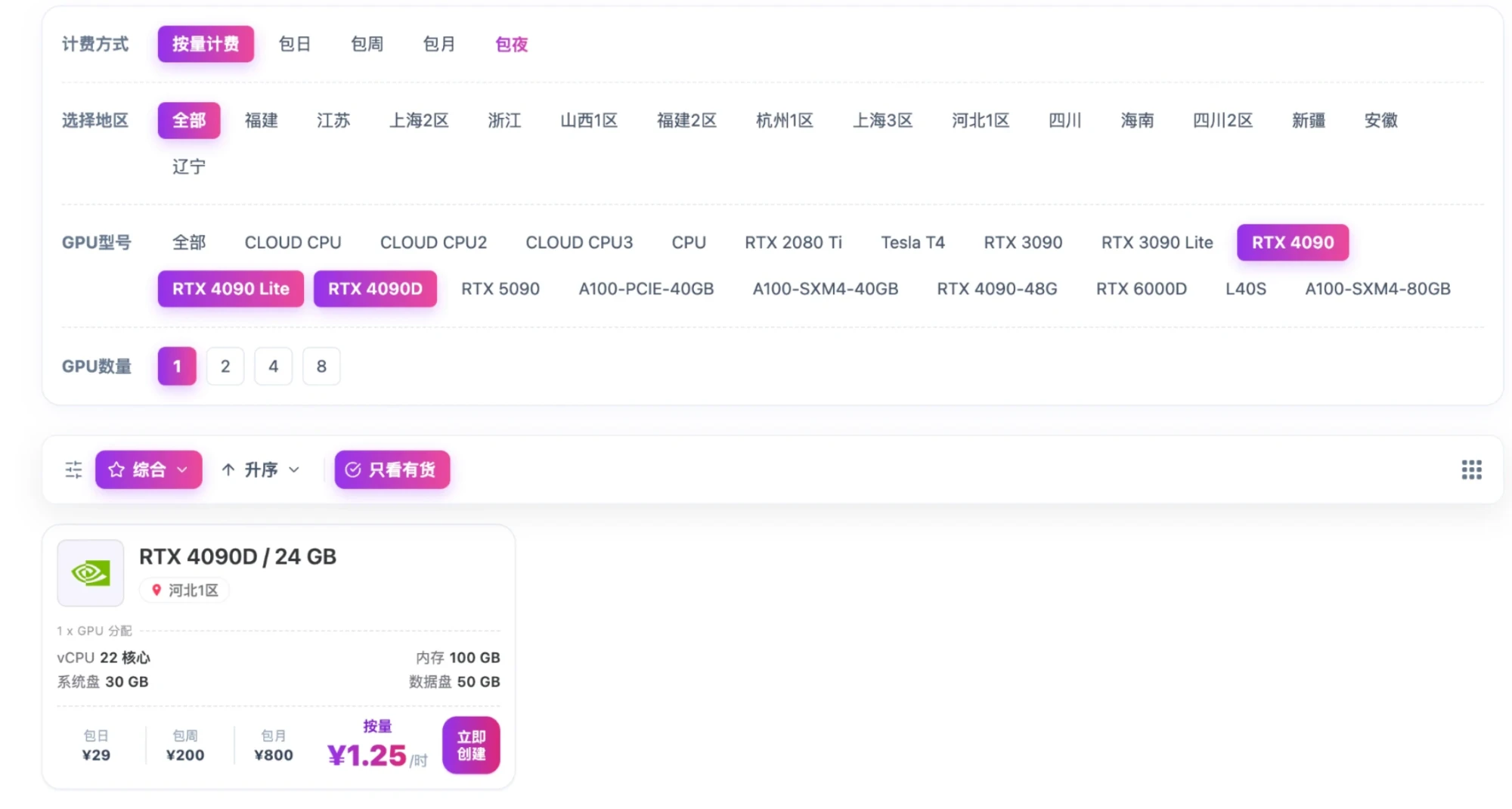
How to choose: for the GPU model pick any of RTX 4090, 4090D or 4090 Lite; all have 24 GB of VRAM, and none of the commands in this book need to change (the 4090D is the China-market version, with slightly less compute than the 4090 and the same VRAM). For the image pick PyTorch → 2.7.1-CUDA12.6-Py3.11-Ubuntu22. For billing pick pay-as-you-go, and shut the machine down when you are done.
Two lessons from actually doing it; deal with these first after the machine starts:
- Put the project on the data disk. The instance's home directory
/rootis on a 30 GB system disk. Install the training environment, download the 8 GB model, then install vLLM, and it fills up. Usedf -hto find the roughly 50 GB disk (on the author's instance it is mounted at/root/rivermind-data) and unzip the project there. - The official PyTorch index may be unreachable. Sections 3.3 and 5.4 both give fallback commands that use a mirror inside China.
Sign-up link: https://gpuhome.cc/auth/register?code=zt4f01m0. Enter the invitation code zt4f01m0 when you register to get the new-user voucher. This is the author's referral link: after your first top-up, the author also receives a platform voucher. Vouchers are issued manually by the platform; once you meet the conditions, contact customer support to claim yours. They are valid for three months.
The host configuration used here
This chapter follows the RTX 4090 cloud host we already chose and started. The configuration below comes from the launch screenshot saved on 2026-09-29; after logging in you still need to check the actual device and environment.
| Item | What we chose | What to watch for |
|---|---|---|
| GPU | 1× RTX 4090, 24 GB VRAM | This tutorial uses a single GPU; chapter 4 runs one full epoch by default (about 72 steps) |
| CPU / host RAM | 15 cores / 100 GB | Meets the 32 GB host RAM the tutorial recommends, and the 64 GB recommended for the later CPU merge |
| System disk | 30 GB SSD | Keep the project, training environment and model on the data disk where possible |
| Data disk | 50 GB SSD, no expansion enabled in the screenshot | For the full workflow, expanding to 100 GB is recommended; check the actual free space before downloading |
| Base image | 2.7.1-CUDA12.6-Py3.11-Ubuntu22 |
Ubuntu 22, Python 3.11, with PyTorch 2.7.1 / CUDA 12.6 preinstalled |
| Billing | Pay-as-you-go | When you finish a session's experiments, stop idle instances according to the platform's rules and check storage charges |
The figure below shows the GPU and image configuration confirmed for this run:
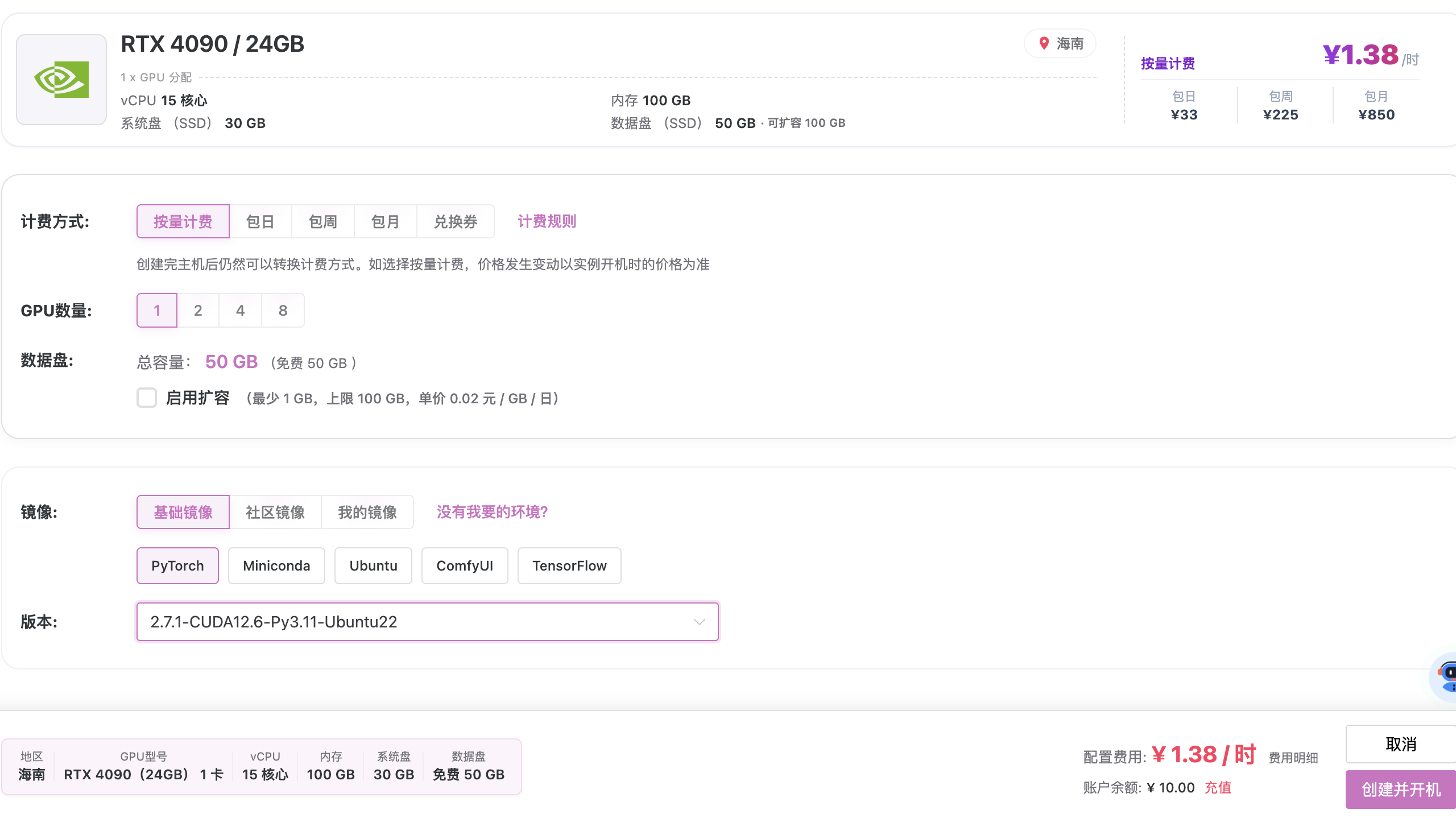
The image is chosen; next, build the project's own training environment inside it. The image comes with PyTorch 2.7.1 preinstalled, while this tutorial's code and dependencies are pinned to PyTorch 2.8.0. The next section creates .venv-train and installs 2.8.0 + cu126, leaving the image's original environment untouched. The official install commands are at PyTorch 2.8.0.
The machine is running, but the driver, dependencies, training VRAM and run time on this host have not been verified yet. This chapter prepares the environment, the download and the kernel; chapter 4 looks at the base model in the Notebook and updates the LoRA parameters.
Choosing a different GPU
The table below refers to standard desktop cards and is meant for planning a Qwen3 4B, 4-bit QLoRA setup with at most 4096 tokens and one sample at a time. Actual usage and run time still have to be measured; when renting, check the full model name, per-GPU VRAM, and whether the GPU is dedicated to you.
| GPU model | VRAM per GPU | Recommendation |
|---|---|---|
| RTX 4090 | 24 GB GDDR6X | The model used here; use the cu126 commands below as written |
| RTX 3090 | 24 GB GDDR6X | A fine choice if you already have one or it actually rents for less; use cu126 |
| RTX 5090 | 32 GB GDDR7 | More VRAM headroom; when installing PyTorch, change the cu126 at the end of the index URL to cu128 |
The 5090 uses the Blackwell architecture and needs a host driver that supports it. The bitsandbytes 0.48.2 support table includes the sm120 it needs in the CUDA 12.8 build. If you use a 5090, also change the CUDA version assertion in the check script below from 12.6 to 12.8. This run uses a 4090, so just run the commands in the next section.
3.2 Read nvidia-smi First: Driver, CUDA and VRAM
The first thing to do after logging in to the GPU host is run nvidia-smi. Its output looks roughly like this:
+-----------------------------------------------------------------------------------------+
| NVIDIA-SMI 560.35.03              Driver Version: 560.35.03      CUDA Version: 12.6     |
|-----------------------------------------+------------------------+----------------------+
| GPU  Name                 Persistence-M | Bus-Id          Disp.A | Volatile Uncorr. ECC |
| Fan  Temp   Perf          Pwr:Usage/Cap |           Memory-Usage | GPU-Util  Compute M. |
|=========================================+========================+======================|
|   0  NVIDIA GeForce RTX 4090        Off | 00000000:01:00.0 Off   |                  Off |
| 30%   35C    P8             20W / 450W  |       0MiB / 24564MiB  |      0%      Default |
+-----------------------------------------+------------------------+----------------------+
| Processes:                                                                              |
|  GPU   GI   CI        PID   Type   Process name                              GPU Memory |
|=========================================================================================|
|  No running processes found                                                             |
+-----------------------------------------------------------------------------------------+
| Field | Meaning | What you should care about |
|---|---|---|
Driver Version |
Kernel driver version, set by the platform image; ordinary users can't change it | Determines the CUDA ceiling below |
CUDA Version |
The highest CUDA version this driver supports, not the installed CUDA | PyTorch's cu126 needs it to be ≥ 12.6; vLLM 0.21's cu129 needs ≥ 12.9 |
Memory-Usage |
Used / total VRAM | Should be close to 0 before training; watch how high it climbs during training; before starting vLLM, confirm the training kernel has released it |
GPU-Util |
GPU compute utilization | Should stay fairly high during training and load testing; sitting at 0 for long means the program is stuck on the CPU or waiting |
Processes |
Which processes are holding VRAM | Use it to find a Jupyter kernel you forgot to shut down |
How the driver, CUDA and PyTorch relate: the driver is installed in the operating system and tied to the GPU. CUDA is NVIDIA's compute library, and the PyTorch wheel ships the copy it needs (the cu126 suffix on torch==2.8.0 means "bundles the CUDA 12.6 runtime"), so you don't need to install the CUDA toolkit yourself. The only constraint is that the version the driver supports must not be lower than the version bundled in the wheel. The CUDA12.6 in the image name refers to the preinstalled toolkit, which is a separate thing from the driver's ceiling; trust nvidia-smi.
An analogy: the driver is like the OS kernel version, the CUDA runtime is like a dependency an app bundles, and nvidia-smi is like top plus free -h.
VRAM and host RAM are two separate pools of memory. Model weights, training intermediates and the KV cache all have to live in VRAM; the host's 100 GB of RAM is only used for staging and for the merge on the CPU. When VRAM runs out, the error is CUDA out of memory, and the fix is to reduce usage (quantization, shorter samples, lower concurrency), not to add host RAM.
3.3 Upload the Project and Prepare the Training Kernel
Upload the bundle llm-lora-tutorial-gpu.zip to the GPU data disk using the platform's file upload feature. You generate this bundle in the local project root with the command below; regenerate it whenever the Notebook, code or data changes. The tokenizer in the bundle comes from your local models/qwen3-4b/, so before packing for the first time, run lab.download --tokenizer-only once as described in section 2.8:
The packing script refuses a Notebook that still has run outputs, so what you upload is always a clean copy. After uploading, open a terminal where you uploaded it and unzip:
Run every later GPU command from this project directory. The Notebook prints the actual absolute path; don't unzip a second copy of the project inside notebooks/. If you already have an older version of the project, unzip the new version into a different directory and keep the original runs/ and model download directory; don't overwrite training results directly.
What's in the upload bundle
It is about 4 MB compressed and about 17 MB unzipped, 31 files in total. It only contains what is "needed for training and deployment on the GPU, but can't be downloaded online or must match this tutorial exactly" (the descriptions in the listing are in Chinese; the chapters referenced there explain each file):
llm-lora-tutorial/
├── GPU_UPLOAD_README.md            GPU 上的操作速查:建环境 → 下权重 → 打开 Notebook
├── notebooks/01_gpu_train.ipynb    训练主入口,第 4 章逐格执行
├── data/
│   ├── dataset.json                唯一的数据文件:事实卡 + train/val/test 对话(第 2 章)
│   └── README.md                   数据逐字段说明
├── lab/                            Notebook 和命令行共用的 Python 代码
│   ├── common.py                   拼提示词、生成训练样本和掩码(第 2.5 节)
│   ├── data.py                     读入并校验 dataset.json、按回答拆样本
│   ├── download.py                 下载并校验基座权重(第 3.4 节)
│   ├── download-lock.json          12 个模型文件的大小和 SHA-256,下载后逐个核对
│   ├── training.py、train.py       训练器配置与命令行训练(第 4.6 节、第 6 章)
│   ├── prepare.py、audit.py        命令行快照与 Token 检查(第 4.6 节、第 6 章)
│   ├── infer.py、evaluate.py       A/B/C 对照推理与盲评(第 6 章)
│   └── merge.py                    命令行合并 adapter(第 5.1 节)
├── models/qwen3-4b/                基座的“说明部分”,没有权重
│   ├── config.json 等配置           模型结构、默认生成参数
│   ├── tokenizer.json、vocab.json、merges.txt、tokenizer_config.json   分词器和聊天模板
│   ├── model.safetensors.index.json   权重分片索引(分片本身还没下载)
│   ├── model-lock.json             本教程固定的模型版本号
│   └── LICENSE、README.md          模型许可证与模型卡
├── requirements-train.txt          训练依赖(Transformers、PEFT、TRL、bitsandbytes 等,版本固定)
├── requirements-download.txt       下载依赖(ModelScope;备用镜像用的 huggingface_hub 随 Transformers 安装)
├── requirements-notebook.txt       Jupyter 内核与画 loss 曲线的依赖
├── requirements-data.txt           数据检查依赖
└── pyproject.toml                  项目元数据
In short: GPU_UPLOAD_README.md is a quick reference for the GPU steps; notebooks/01_gpu_train.ipynb is the main training entry point (chapter 4); data/ holds the single dataset file and its field guide; lab/ is the Python code shared by the Notebook and the CLI (prompt building and masks in common.py, download and verification in download.py with the size and SHA-256 of 12 model files in download-lock.json, plus the CLI training, snapshot, inference, evaluation and merge scripts); models/qwen3-4b/ is the base model's "descriptive part" (config, tokenizer and chat template, shard index, pinned version, license and model card) without the weights; the requirements-*.txt files pin the training, download, notebook and data-check dependencies.
| Not in the bundle | Why | Where it comes from |
|---|---|---|
The 8 GB weight shards model-0000X-of-00003.safetensors |
Too big and slow to upload; the GPU host downloads them faster from a mirror inside China | Downloaded on the GPU in section 3.4 and verified against download-lock.json |
| PyTorch and the other dependencies themselves | Tied to the GPU and CUDA version, so they must be installed on the GPU host | The pip commands below install them from requirements-*.txt |
Training results runs/, snapshots data/processed/ |
These are artifacts produced on the GPU | Created by training in chapter 4 and by snapshot generation in section 4.6 |
Automated tests tests/, e-book source |
Not used on the GPU | The full project, or the e-book's "Source download" page (section 8.1) |
The tokenizer is included so the GPU host can check the model version before downloading weights; the download then only has to fill in the three weight shards. The Notebook reads data/dataset.json directly, so you don't need to run lab.prepare first. The 50 GB data disk has to hold the training environment, the original weights, the merged weights and the inference environment at the same time; for a full deployment, expanding to 100 GB is recommended.
Build the project environment in the GPU terminal:
python3.11 -m venv .venv-train
.venv-train/bin/python -m pip install --upgrade pip
.venv-train/bin/python -m pip install torch==2.8.0 --index-url https://download.pytorch.org/whl/cu126
.venv-train/bin/python -m pip install -r requirements-train.txt -r requirements-download.txt -r requirements-notebook.txt
.venv-train/bin/python -m pip check
.venv-train/bin/python -m ipykernel install --user --name lora-train --display-name "LoRA · Python 3.11"
Training uses pinned versions of Torch/Transformers/TRL/PEFT; ModelScope is only used for downloading; ipykernel lets the platform's Jupyter use this environment. If you already built .venv-train following an older version of the tutorial, you can reuse it: install the newly added dependencies and register the kernel. If the regular Python package index is slow, you can use the PyPI mirror the platform provides; the model download source and the pip package source are two different things.
If you can't reach download.pytorch.org (you get Network is unreachable or endless retries): the third command uses --index-url to temporarily point downloads at the official PyTorch index, which hosts inside China often can't reach. Switching only to a regular PyPI mirror (Tsinghua, Alibaba, etc.) does not fix this: they only carry the default torch 2.8.0 from PyPI (bundling CUDA 12.8), while the self-check below requires 12.6. Use Alibaba Cloud's PyTorch mirror instead, which has the same 2.8.0+cu126 package:
.venv-train/bin/python -m pip install 'torch==2.8.0+cu126' -f https://mirrors.aliyun.com/pytorch-wheels/cu126/
-f only tells pip to look on that page for torch itself; torch's dependencies such as nvidia-* and triton still come from your configured PyPI source. Writing the version as 2.8.0+cu126 keeps pip from installing the cu128 build from PyPI. Once it's installed, continue with the fourth command above (requirements-*.txt); the remaining steps are unchanged. To pin a PyPI source permanently, run .venv-train/bin/python -m pip config set global.index-url https://pypi.tuna.tsinghua.edu.cn/simple, and use pip config list to view the current configuration.
.venv-train/bin/python - <<'CHECK'
import sys, torch, transformers, trl, peft, bitsandbytes
print("Python:", sys.executable)
print("Torch / CUDA:", torch.__version__, torch.version.cuda)
assert torch.__version__.split("+")[0] == "2.8.0"
assert torch.version.cuda == "12.6"
assert torch.cuda.is_available() and torch.cuda.is_bf16_supported()
print("GPU:", torch.cuda.get_device_name(0))
print("依赖:", transformers.__version__, trl.__version__, peft.__version__, bitsandbytes.__version__)
CHECK
Only continue once this passes (the 依赖 line prints the dependency versions). If CUDA is not available, check the kernel, driver and wheel first; the image's preinstalled Torch 2.7.1 cannot stand in for this project's environment. The kernel registration follows the official IPython documentation.
3.4 Download the Full Weights on a GPU Host in China
By default we use Alibaba's ModelScope; the repository is Qwen/Qwen3-4B-Instruct-2507. It has its own SDK; this is not a matter of pointing HF_ENDPOINT at the ModelScope homepage.
Do not add --tokenizer-only. This command keeps the model-lock.json and the already verified tokenizer from the upload bundle and fills in the three missing weight shards. If the network drops, rerun the same command; it keeps .cache and the version lock, and you don't need to prepare the data again.
download.py checks the remote file sizes and SHA-256 against download-lock.json, then checks the content actually downloaded. ModelScope fetches files from master, but they must be byte-identical to the Hugging Face revision pinned here; if the repository content has changed, it stops, so versions never get mixed. The metadata of all 12 files in the list has been checked against both sources; the three weight files total about 8.0 GB (decimal).
After downloading you can run an offline check on its own:
Only move on to training when you see “校验通过:12 个文件;完整模型权重已就绪” (“Verification passed: 12 files; full model weights are ready”) and the command exits normally. The directory should contain:
models/qwen3-4b/
├── model-lock.json
├── config.json
├── tokenizer.json
├── tokenizer_config.json
├── model.safetensors.index.json
├── model-00001-of-00003.safetensors
├── model-00002-of-00003.safetensors
└── model-00003-of-00003.safetensors
Keep the other config, vocabulary and license files as well. Seeing only model-lock.json and the weight index, or a log line saying Returning existing local_dir, does not mean the weights were downloaded. The current downloader rejects such incomplete results.
Fallback: download through a Hugging Face mirror in China
If ModelScope is unreachable, you can explicitly choose hf-mirror.com:
.venv-train/bin/python -m lab.download --source hf-mirror --output models/qwen3-4b
.venv-train/bin/python -m lab.download --check-only --output models/qwen3-4b
The code passes the mirror address explicitly to the Hugging Face SDK, so you don't need to patch installed package source code or permanently change global environment variables, and it still uses the same version lock and file verification. This mirror is an independent third-party service, not Alibaba Cloud's official ModelScope; whether you can reach it depends on the GPU host's network. Based on the Hugging Face download API.
On the development machine, the ModelScope config/tokenizer download has been tested and passed verification, and the three large weight files also passed a download test of a few bytes. The full 8 GB of weights has not yet been downloaded on this GPU host; the full verification result on the host is what ultimately counts.
| Symptom | What to do |
|---|---|
huggingface.co / Network is unreachable |
Use an explicit --source modelscope, or the fallback --source hf-mirror |
| Missing weight shards | Rerun the full download in the same directory, without --tokenizer-only |
| Local file hash mismatch | Move the reported file aside as a backup and download again, keeping the version lock; don't skip the check |
| Remote file doesn't match the pinned version | Stop using that source and try another source for the pinned content; don't edit the hash to let it through |
No space left on device |
Check which partition the project is on and expand it or move to the data disk; don't delete experiment results you haven't backed up |
3.5 Open the Notebook and Start Training
In JupyterLab, open 01_gpu_train.en.ipynb and select the LoRA · Python 3.11 kernel. If you don't see it, refresh Jupyter; don't pick the plain Python 3 kernel that comes with the image.
If this is your first time using Jupyter, these are the only things you need to know:
| Action | How |
|---|---|
| Run the current cell | Click into a code cell and press Shift+Enter; after it runs, focus jumps to the next cell |
| Tell whether it's running | [*] to the left of a code cell means it is running; a number like [3] means it finished as the third execution |
| See output | Output appears right below the code cell; long output is collapsed, click the blue bar on the left to expand it |
| Switch kernel | Menu Kernel → Change Kernel; the current kernel name is shown in the top right |
| Start over | Kernel → Restart Kernel clears all variables in memory; files on disk are not affected |
| Free VRAM | Kernel → Shutdown Kernel; closing the browser tab does not free it |
The Notebook uses straightforward Python training code. Below each code cell there are three parts: what it does, why, and what you'll see after running it. The third part shows the expected output and what each number means; your actual values will differ slightly. Cell 1 sets ROOT and RUN_DIR, with results going to runs/science-001/ by default. When opened from the project or the notebooks directory it detects the path automatically; from anywhere else, fill in ROOT by hand.
Next, train cell by cell following chapter 4. The base model's answers are part of the Notebook too, so there's no need to run the old A/B commands separately.